SlashLog for Slack
Get your log alerts in the Slack channel your team already watches.
What it does
SlashLog is a log management service: it collects your servers' and apps' logs, cuts the noise, and lets you search them. Alerts watch your logs for you, and with Slack connected they post to a channel you pick when:
- an error, or anything you search for, shows up more than a number of times in a few minutes;
- a new kind of log message appears for the first time;
- a server or service that usually sends logs goes quiet.
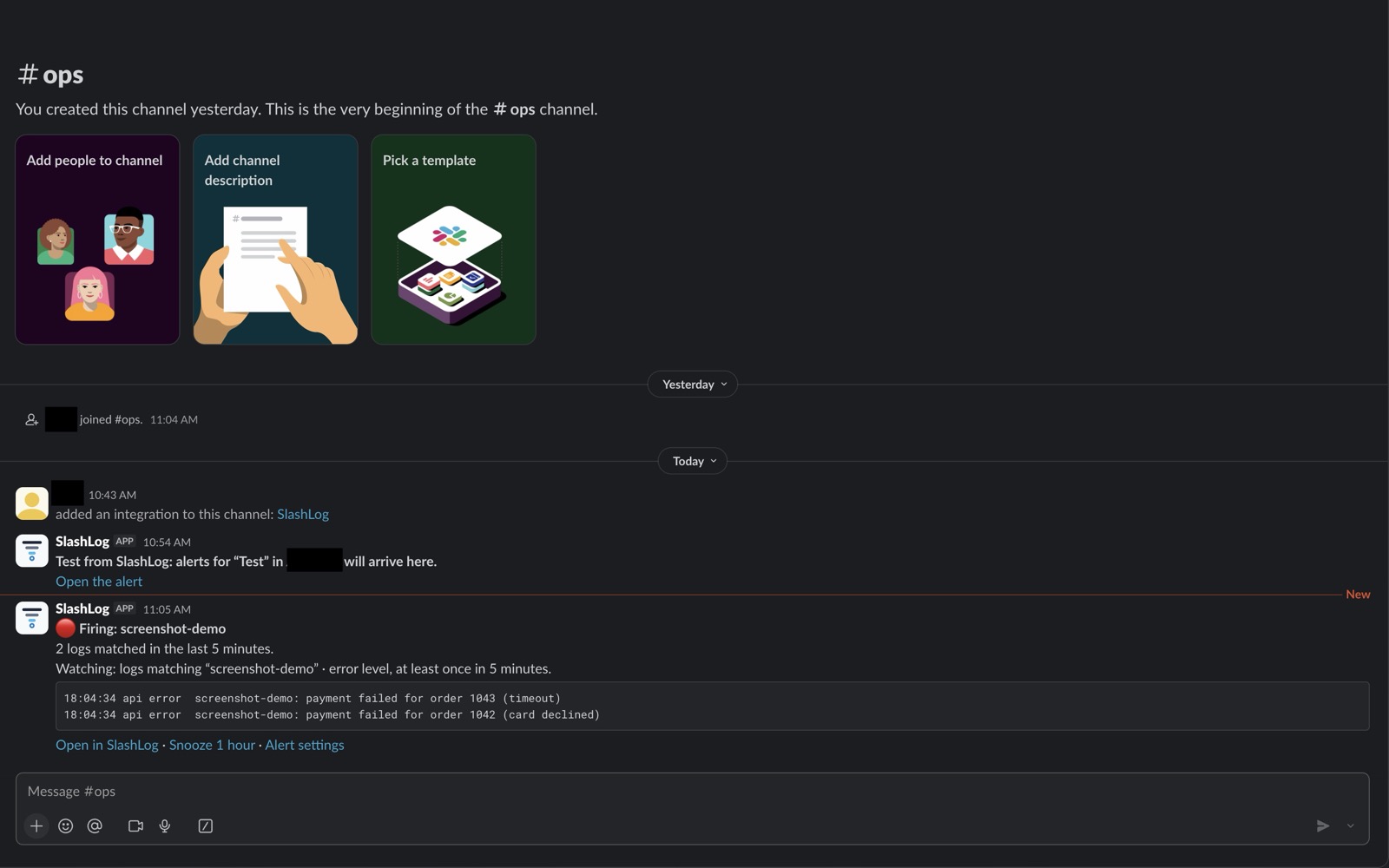
Each alert says what happened, shows a few of the matching log lines (after your workspace's masking: card numbers and secrets by default), and links to open those logs in SlashLog, snooze the alert for an hour, or change its settings. When things are back to normal, a second message says it has cleared.
Connect it
You need a SlashLog account and to be an admin of your SlashLog workspace.
- In SlashLog, open Alerts and add a channel (or choose who to tell while creating an alert).
- Choose Slack and click Connect Slack. A Slack window opens.
- Check the Slack workspace at the top right, pick the channel under Where should SlashLog post? and click Allow. (Until SlashLog is listed in the Slack Marketplace, Slack shows a notice that the app isn't reviewed yet; you can still allow it.)
- The window closes and the channel appears in SlashLog. Slack shows "SlashLog is connected" in the channel. Use Send test on an alert to try it.
Alerts are on every plan, Free included: Free 3, Developer 10, Pro 50, Scale unlimited alerts per workspace. Every plan can post to as many channels as you like.
What SlashLog can access
SlashLog asks Slack only for permission to post to the one channel you pick (the incoming-webhook permission). It keeps that channel's posting address, encrypted, and the channel's name; nothing else.
- It can't read messages, files or other channels, or see your workspace's members.
- It never posts on its own: only the alerts your SlashLog admins set up, and never to #general by default.
- It doesn't mention @channel or @everyone.
The details are in our Privacy Policy and Terms of Service.
Change or remove it
- Choose which alerts post to the channel, or snooze one, in SlashLog's Alerts.
- Remove the channel in SlashLog: it stops posting there at once, and SlashLog erases the channel's posting address.
- Or remove SlashLog from Slack's app settings; it can no longer post anywhere in your workspace.
Help
Questions or problems: Support. We answer within 2 business days.